Everything Tornado checks
Build a report from close to 80 checks across 12 categories. Tornado runs your AutoCAD engine on each drawing, so the results are the real thing, not a guess from the file header. Checks your install cannot run are shown greyed out with the reason.
The checks, by category
File and standards
DWG version, file bloat, edit time, drawing properties and custom properties, units, INSUNITS, LTSCALE, DIMSCALE, plot-style mode, current layer.
Layers
Layer count and table, empty layers, objects on layer 0, non-standard names against your list, frozen / off / locked states, xref-dependent layers.
Blocks and attributes
Insert counts, title-block attribute extraction (your drawing register), all attributes of a block, dynamic, nested, anonymous, and unresolved blocks.
Xrefs and underlays
Attached count, missing references, absolute versus relative saved paths, PDF and image underlays and their missing files.
Text and fonts
Text and MText counts, text styles, missing SHX and TTF fonts, and a full text dump you can search for a note, tag, or spec reference.
Dimensions and annotation
Dimension styles and counts, wipeouts, revision clouds, exploded dimensions, annotation scales, multileader styles.
Layouts and plotting
Page setups, plot styles, named plotters (flagged when a layout has none), viewports and their scales, named views.
Entity census
Total count, count by entity type, proxy objects that plain AutoCAD cannot edit, zero-length junk geometry, 3D objects.
Geometry and takeoffs
Line length and area by layer, hatch area by layer, and block quantity by block and layer, the quantity-takeoff hook.
Health
A purge preview (unreferenced blocks, layers, linetypes, styles), hard-coded properties, non-standard text styles, and recovery flags.
What makes it an auditor, not just a reporter
Report chains and recipes
Drag checks into a chain, set each one's options, and save the whole thing as a recipe you reuse on every project.
Tunable standards
Most checks take an expected value or a threshold. Set your office standard once and Tornado flags every drawing that misses it.
Flag rules
Colour any cell amber or red on your own conditions (greater than, missing, duplicate, and more), then filter the results to just the offenders.
Adapts to your AutoCAD
A one-time capability probe tailors the available checks to exactly what your installed AutoCAD version can do.

Search and filter
Find text across a set, count a single entity type, or list only blocks used at least N times.
Exports
Save the current view to Excel with the flag colours intact, or to CSV or JSON, ready for a submittal or a QA record.
See it in action
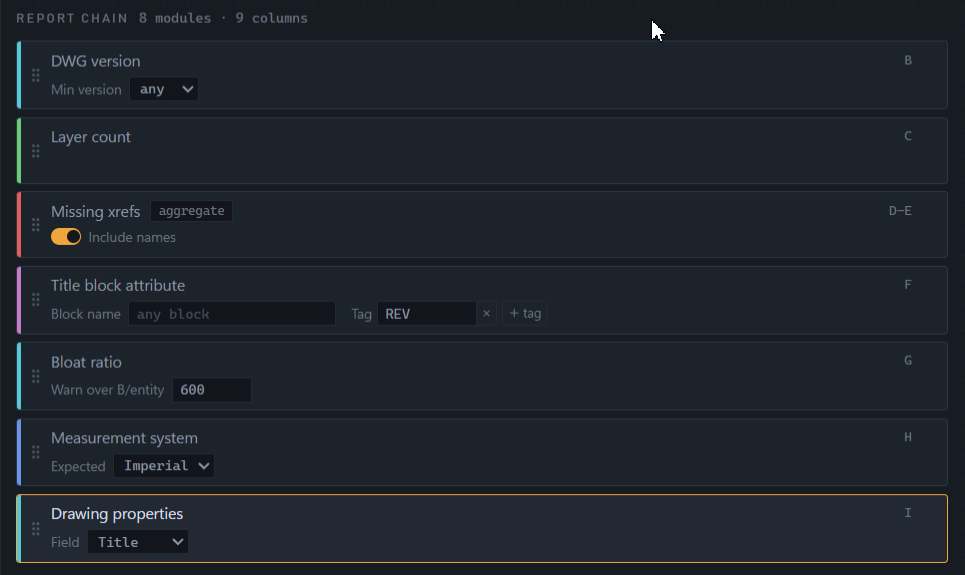
Compose the report, then tune it
Drag the checks you care about into a report chain, in the order you want the columns. Most checks carry their own options right on the card: an expected value that turns a plain reading into pass or fail, or a threshold that decides when a number is worth flagging. Save the whole chain as a recipe and every project starts from your standard, not a blank sheet.
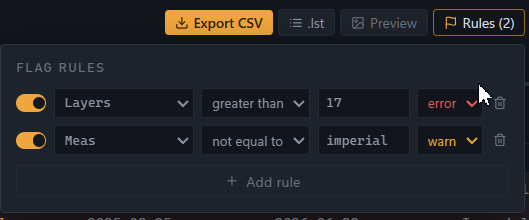
Flag the drawings that break your rules
On top of the built-in standards checks, add your own flag rules: colour any column amber or red when a value is greater than, missing, duplicated, or off an expected setting. The grid lights up the drawings that need attention, and the Flagged view hides everything that passed. Export keeps the colours, so a reviewer sees exactly what you saw.
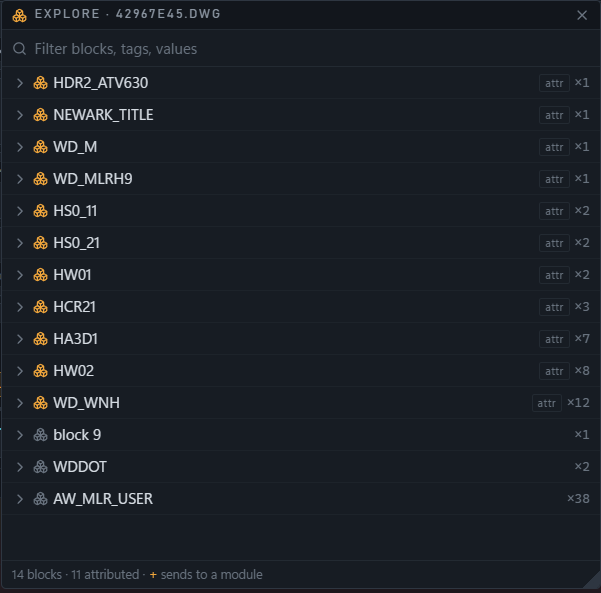
Drawing Explorer: open one drawing and look inside
Batch reporting tells you which drawings are odd. The Drawing Explorer tells you why. Open any single drawing, from a results row or on its own, and Tornado reads it live into a tree of every block with its insert count, attributed title blocks sorted to the top. Expand a block to see its attribute tags and values, and search across every name, tag, and value at once.
It is also the fastest way to build a report. Found the title-block name and the revision tag you were hunting for? Click the plus and Tornado drops a pre-filled check into your report chain, so you go from discovering a value to auditing it across the whole set in one step.
Export the report, and the file list
When the report is right, export the current view exactly as you see it, sorted and filtered, to Excel with the flag colours intact, or to CSV or JSON for a submittal or a QA record. You can also export just the file paths as a list, ready to hand to Hurricane.
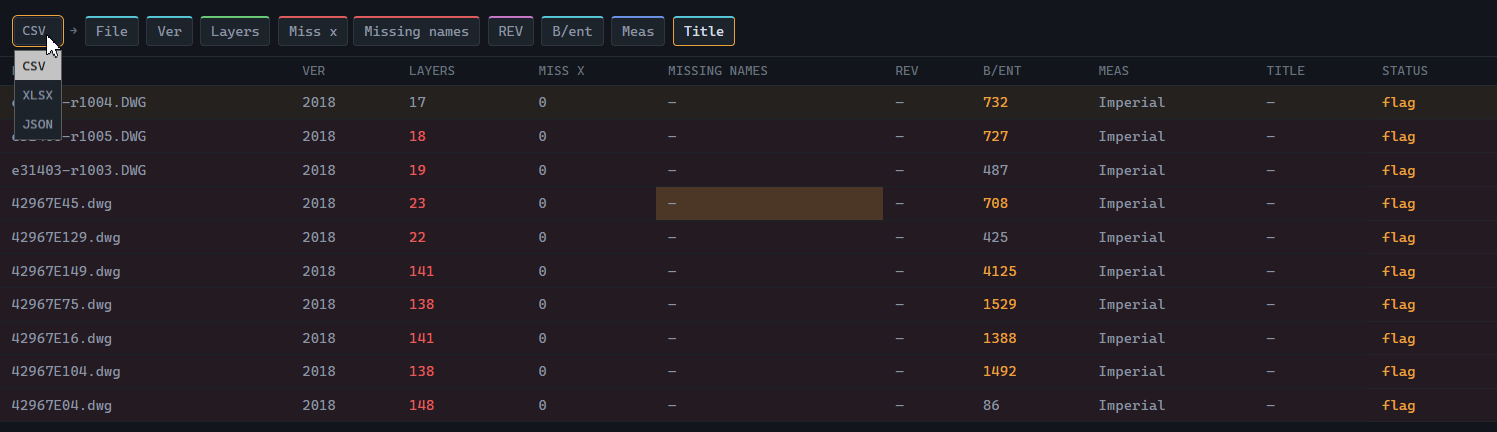

The Hurricane loop
Audit a tree in Tornado, filter to the problem drawings, and export a file list. Load that list into Hurricane's Queue to batch-fix them, then re-run Tornado on the same list to confirm the fixes cleared. Tornado finds Hurricane's file-list folder automatically, so lists hand off both ways with no folder hunting.