 Hurricane for Autodesk® AutoCAD®
Hurricane for Autodesk® AutoCAD®
Hurricane for Autodesk® AutoCAD®
Once you install Hurricane and run it, make sure to set up the OPTIONS. Do this by selecting the Tools-->Options menu in Hurricane.
Please see the following Hurricane 1-Minute Setup video, or continue below.
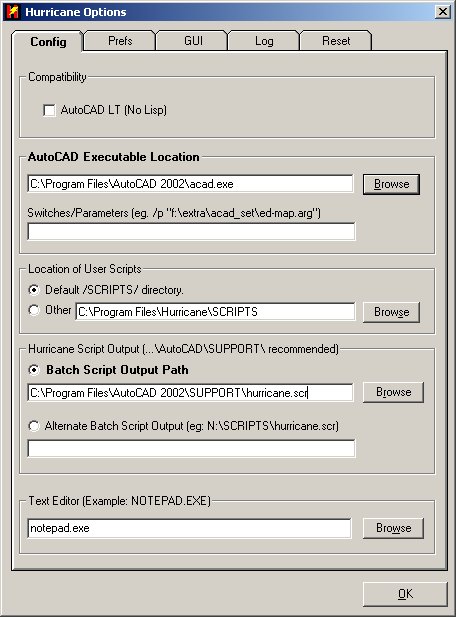
The Config tab holds the core settings that tell Hurricane how to work with AutoCAD. Here is what each one does:
Compatibility — "AutoCAD LT (No Lisp)": Check this box only if you run AutoCAD LT 2023 or earlier. Those versions cannot run AutoLISP, so Hurricane switches off the features that depend on it (Title-Block Update, Search & Replace Text, and similar) and builds LT-safe scripts. Leave it unchecked for full AutoCAD and for AutoCAD LT 2024 and later, which run AutoLISP.
AutoCAD Executable Location: The full path to your AutoCAD program file (
acad.exe) — Hurricane launches this to run your batch scripts. Click Auto to have Hurricane find your installed AutoCAD automatically (new in 8.2); if more than one version is installed you can choose which one to use. Or click Browse to point toacad.exeyourself.Switches/Parameters: Optional command-line switches passed to AutoCAD when it launches — for example to load a particular profile, workspace, or argument file (e.g.
/p "f:\extra\acad_set\ed-map.arg"). Most users leave this blank.Hurricane Script Output: Where Hurricane writes the
hurricane.scrbatch script that AutoCAD runs.
- Batch Script Output Path (recommended) — point this at your AutoCAD SUPPORT folder (e.g.
C:\Program Files\Autodesk\AutoCAD 2026\SUPPORT\hurricane.scr) so AutoCAD always finds it on its support search path. Click Test to confirm Hurricane can write there. Tip: if AutoCAD is installed underProgram Files, Windows may write-protect that folder — if Test fails, pick a writable location such as your Documents folder or a network scripts folder.- Alternate Batch Script Output — an optional second output location (e.g.
N:\SCRIPTS\hurricane.scr). Leave it blank unless you specifically need it.Location of User Scripts: Where Hurricane stores the user scripts (LISP/VBA snippets and saved scripts) you build. Default /SCRIPTS/ directory uses the SCRIPTS folder under Hurricane's own install; choose Other and Browse to keep them elsewhere — handy for sharing one script library across a team.
Text Editor: The program Hurricane opens when you view or edit a script (default
notepad.exe). Point it at your preferred editor if you like.
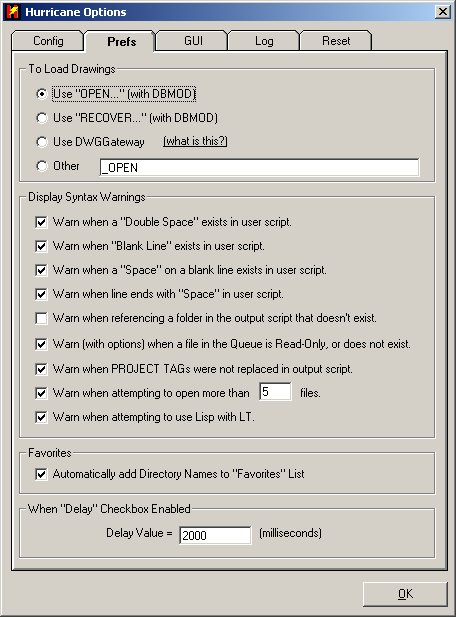
Also, look over the PREFS tab, and select any options you require.
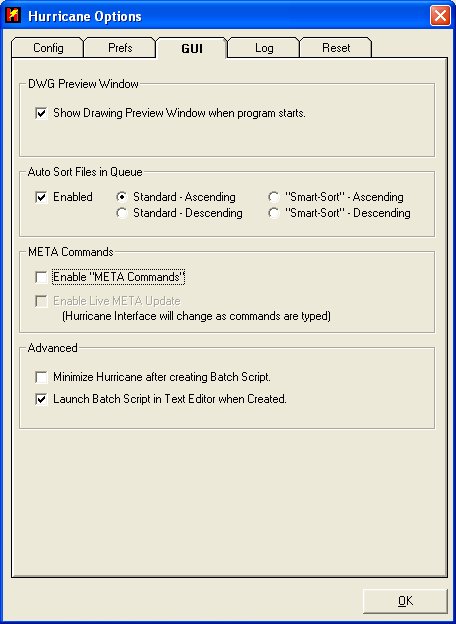
"Show Drawing Preview Window when program starts Option - You may want the Drawing Preview window to automatically appear when Hurricane Starts... (Recommended setting is checked)
"Auto-minimize on creation of a batch script Option - Also, power users may want Hurricane to Auto-Minimize as soon as a script is created, this should save you yet another 2 seconds, as you won't have to ALT-TAB back to AutoCAD to run the script, if AutoCAD is your underlying application, then it will become focused. (Recommended setting is UNchecked (for beginners))
"Launch Script in Text Editor when Created" Option - When you create a script, you may want to take a look at it's contents as soon as you click the "Create" button. (Recommended setting is checked)
"Delay Value" - Setting - Allows you to specify a DELAY time in milliseconds that is automatically inserted in the script when the "Delay" Checkbox is selected.
"Automatically Add Directory Names to Recent Folders List" Option - Hurricane has the ability to "remember" where you selected files from... (don't you hate having to HUNT for the same files and directories all day long!?) With this option checked, the directories of the files you generate a script with are automatically added to the "Recent Folders" list. If you ever want to hunt down that job you did but was buried in 20 subdirectories, then you should leave this checked. (Recommended setting is checked)
"Display Script Syntax Warnings" Option - Does a basic scan of the script for double-spaces, and empty lines that have spaces on them (which would be hard to notice unless you were looking for them) (Recommended setting is checked)
GUI tab — controls how the Hurricane window and the drawing preview behave.
- DWG Preview Window — Show Drawing Preview Window when program starts opens the floating drawing-preview window automatically each time Hurricane launches.
- META Commands — Enable META Commands lets a script drive the Hurricane interface from within the script itself; Enable Live META Update updates the interface live as commands are typed. See the META Commands FAQ.
- Advanced — Minimize Hurricane after creating Batch Script auto-minimizes Hurricane as soon as a script is built, so AutoCAD comes forward ready to run it; Launch Batch Script in Text Editor when Created opens each new script in your text editor for a quick look.
- Auto Sort Files in Queue — sets how files added to the queue are automatically ordered (Smart-Sort or alphabetical, ascending or descending).
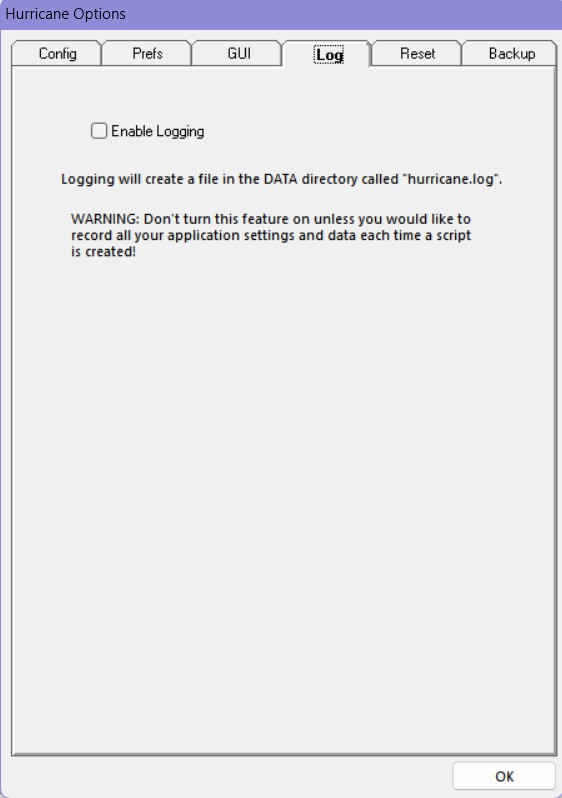
Log tab — turn on activity logging for troubleshooting.
Check Enable Logging to have Hurricane write a
hurricane.logfile in its DATA directory recording what it does. Leave it off for everyday use; switch it on when you are diagnosing a problem or working with support.
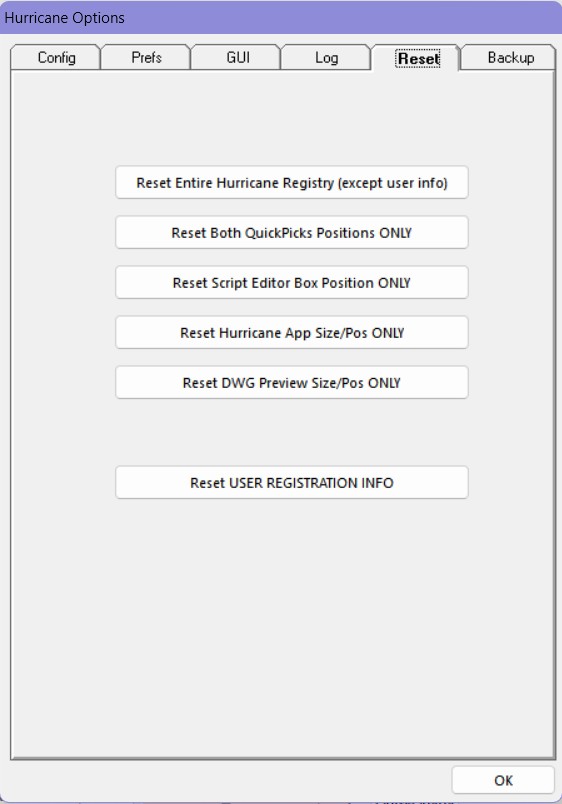
Reset tab — restore window positions or settings to their defaults.
- Reset DWG Preview Size/Pos ONLY — recenters and resizes just the drawing-preview window.
- Reset Hurricane App Size/Pos ONLY — recenters and resizes the main Hurricane window (handy if it ends up off-screen).
- Reset Script Editor Box Position ONLY — resets the floating Script Editor window position.
- Reset Both QuickPicks Positions ONLY — resets the two QuickPick windows.
- Reset Entire Hurricane Registry (except user info) — returns every setting to its default while keeping your registration — a clean slate without re-licensing.
- Reset USER REGISTRATION INFO — clears your stored registration details; you will need to re-enter your license.
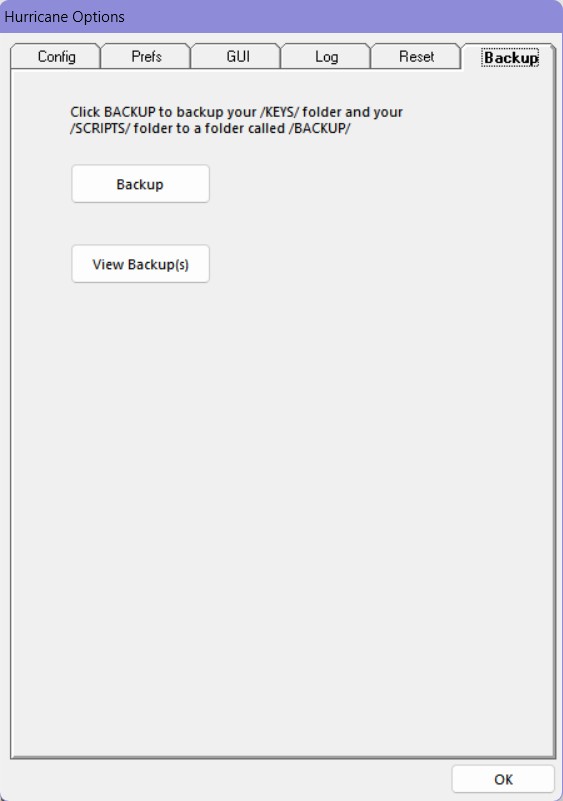
Backup tab — save copies of your license keys and scripts.
Click Backup to copy your
/KEYS/folder (your license) and your/SCRIPTS/folder into a/BACKUP/folder; click View Backup(s) to open that folder in Windows Explorer. It is worth running a backup before you upgrade Hurricane or move it to another PC.Make sure you press "OK" to save your changes.
If you are done setting up Hurricane, why not check out the rest of the FAQ to learn how to use Hurricane and it's time-saving features?